



 EN
EN


Heartopia


Written by
Heartopia promises a cosy simulation of life, perfect for a moment of relaxation. However, the tactile experience can be frustrating (especially for the camera!), and many of you are looking for a solution to take advantage of controller support for Heartopia.
Unfortunately, there is currently no Heartopia controller support on Android and iOS. The developers have not integrated this option. But don't despair: there are workarounds for Android and PC!
Like you, I don't really understand why XD Games hasn't provided Heartopia controller support, when the game is clearly positioned as a direct competitor to Animal Crossing on Switch. You'd expect an optimised experience, including the ability to play it with a controller, whether on mobile or PC (the PC version of the game doesn't offer controller support either).
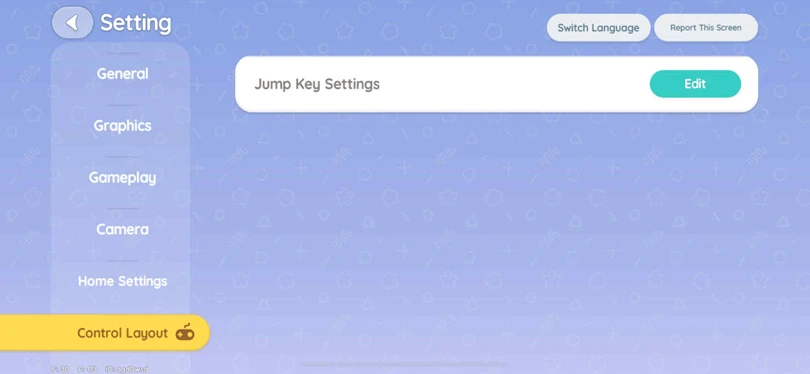
I've looked hard, but there's no option in the game settings to change the controls. The game is designed solely for the touch interface. In other words, you can't play Heartopia with a controller... in theory!
Fortunately, I've come up with a trick that will allow you to play Heartopia with an Android controller ! In fact, if you're looking for this kind of accessory, I suggest you check out our top list of the best controllers for phones!
Here's my solution to Heartopia's lack of controller support on Android:
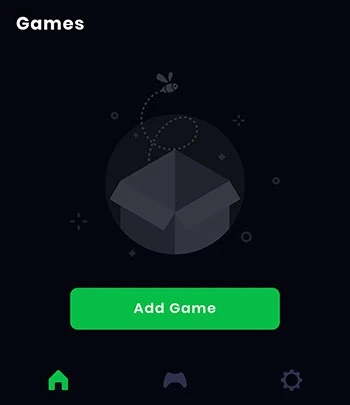
And that's it! Even without Heartopia controller support, you can still enjoy your favourite cozy life simulator in the best possible conditions! We've also put together a guide to inviting friends to Heartopia, so check it out!
I'm sorry for all you iPhone and iPad gamers out there, but there's no way to play Heartopia with the controller on iOS... Apple's operating system doesn't support keymapping. And from what I've read on the Heartopia Discord server, XD Games has no plans to add controller support. So you'll have to make do with the touch version. This is my case, so I've chosen to play Heartopia on PC, and I'll tell you how!
As you're no doubt aware, you can play Heartopia on your PC by downloading the TapTap launcher from the game's official website. But once again, there's no Heartopia controller support on PC... Don't worry, I've got a solution for you: use an Android emulator, and BlueStacks to be precise!
⚡ Mobi.gg tip: we've put together a selection of the best Android emulators on PC, as well as a top emulators on Mac. Don't hesitate to take a look!
Here's how to play Heartopia on your PC with BlueStacks :
Are you done? Just one last thing to do before you start playing your favourite cozy game with the controller.
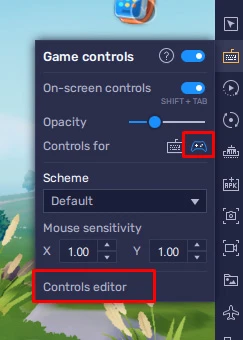
Tip: Don't forget to reduce the opacity of the keys on the screen once you've memorised them, for greater immersion!
⚡ Mobi.gg tip: For maximum fluidity, we recommend BlueStacks 5 with an Android 11 (Beta) or Pie 64-bit instance.
Now you can play Heartopia with your PC controller! That's easy, isn't it? To sum up, unfortunately there's no Heartopia controller support. But there is the Mantis solution for Android, as well as BlueStacks for joystick controls on your PC. Now we can only hope that XD Games changes its policy and decides to add controller support for Android and iOS.
Follow us on our social networks to stay on top of mobile gaming news wherever you are!


Heartopia offers a highly advanced customisation feature: design patterns to personalise your wardrobe. But how do you unlock it? What tools do you need? Discov...

The Maltese x Heartopia collaboration has begun, and there are lots of surprises in store! Among them, new recipes to learn, each cuter than the next. But how d...
Birdwatching is one of Heartopia's specialities. In this relaxing activity, you'll be on the lookout for all the birds on the map. The european robin is one of...
Completing your collection of fauna in Heartopia is a real challenge. Certain insects only appear in certain places, under certain weather conditions or at cert...

In Heartopia, all the NPCs are important and have things to teach you, or to sell you. Vanya is the fishing mentor, one of the central NPCs in your favourite co...
Spring has sprung in Heartopia! And with it comes a new egg hunt event. But unlike the Winter Frost Season event, all the eggs can already be found. You've only...