




 EN
EN

Written by
Published on

Written by
As you know, on the Internet you have to be wary of everything, including hackers. Steam understands this, which is why the platform offers you double authentication when you log in to your account: Steam Guard. With your phone, you can secure your account, games and all the items you own. How to install Steam Guard on mobile? Here's how.
Like the vast majority of PC gamers, you probably have a Steam account, which contains your entire library of games that you have purchased. But that's not all! Your account is also linked to all the items you've won, bought or traded from games like Counter-Strike 2, Rust, and Team Fortress 2 via reputable trading sites like Tradeit, which can be worth a lot of money. And it's these items that hackers are interested in.
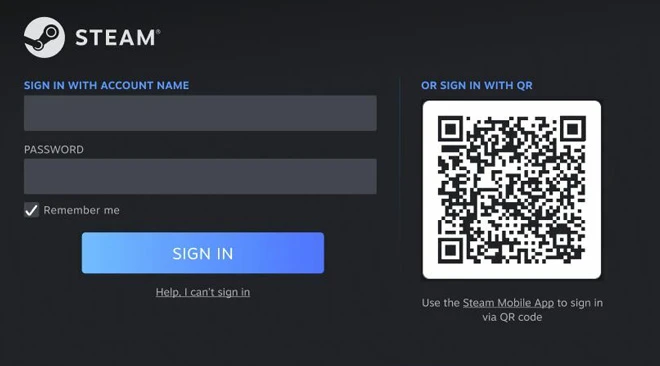
That's why Steam has introduced Steam Guard, a dual authentication tool that lets you secure your account using your smartphone. When you want to log in, the Steam Guard authenticator installed on your mobile will provide you with a unique and impossible-to-guess code, which you will need to enter to access your account.
How does it work? How do you install Steam Guard on mobile? That's what we're going to find out.
As usual with Steam, the steps involved in installing Steam Guard are a little complex. But don't panic, we'll explain everything in detail:
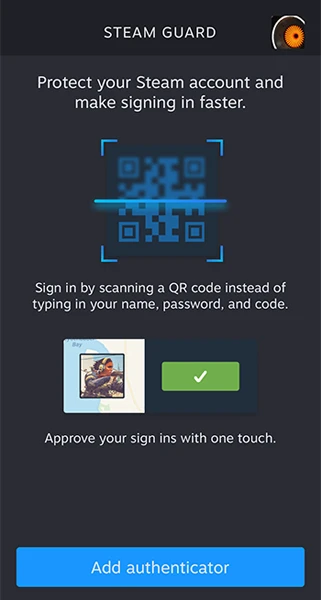
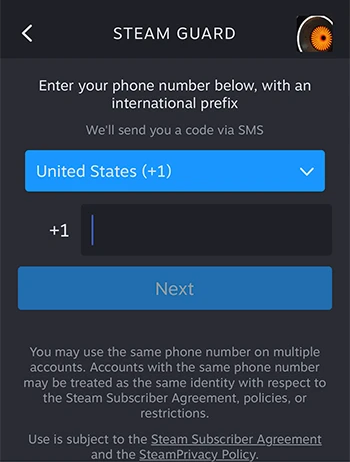
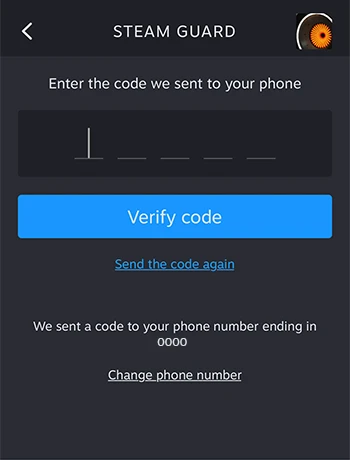
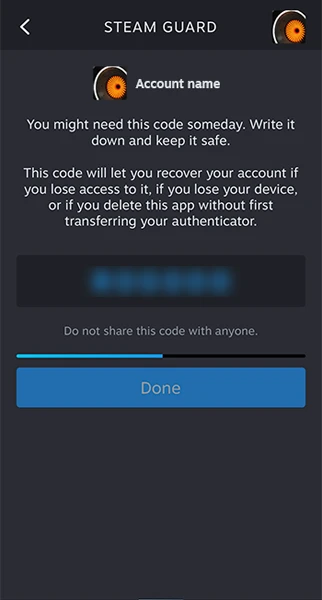
That's it, you've just installed Steam Guard on mobile! Now, when you want to connect to Steam, you can choose between several options : connect via a QR code with the Steam app on your mobile, enter your name and password (Steam will then send you a notification to confirm the connection) or enter the Steam Guard code, available on the app.
There's now no excuse for you to secure your Steam account, protect your games and your items! I'd really advise you to take the time to install Steam Guard on your mobile, but also to never respond to solicitations on Steam from people you don't know (for example, players offering you to join a tournament on a competitive game). And don't click on any links sent via the Steam messaging system!
Follow us on our social networks to stay on top of mobile gaming news wherever you are!



As you know, here at Mobi.gg we're passionate about mobile games, and we've even created a dedicated media section! However, we also know that, just like everyw...

Is it possible to combine business with pleasure, with a business phone designed for gaming? In this guide, I'll be giving you advice on how to choose your next...

AI is taking an increasingly dominant position in the gaming world, enabling pipeline tools, filling virtual spaces with content and highlighting data for busin...

There's nothing like the ultimate duel to prove your worth. And it's d-d-d-duel time for players, as the only refund option allowed by the game's developer is t...

Evolution is a fundamental principle that the whole world respects: dinosaurs, society and Pokémon. This time, JeuMobi. com is evolving into Mobi.gg. Thi...

You're familiar with the shops, pubs, battle passes and secondary currencies of a whole host of video games. And you may already have seen applications that pro...